Requests
Requests let you send a formal request to your chairs from your device, for example a right to information or a motion, instead of only raising your placard. The chairs see it right away in their list of pending requests.
When requests are available
- The chairs switch requests on per committee with the Requests setting. It's off by default. If it's off, you won't see the Requests card on your dashboard. See Requests for chairs.
- The conference admins decide which requests exist, such as "Right to Information" or "Roll-Call Vote". See Setting up requests.
- Delegates and non-state actors can send requests. Spectators don't get the card.
Making a request
- On your committee dashboard, find the Requests card.
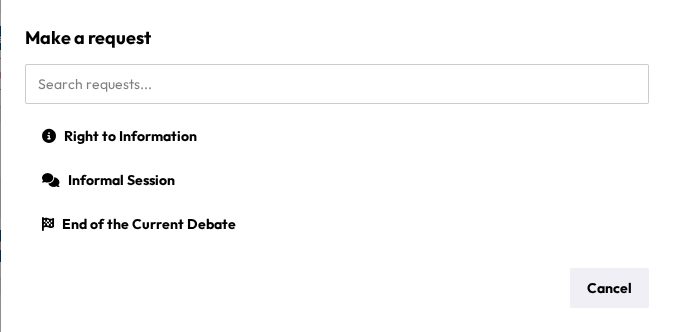
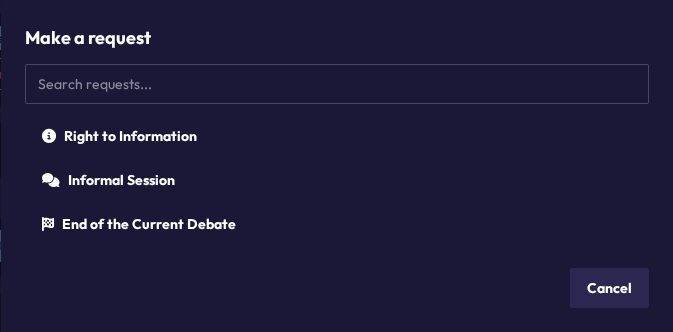
- Click Make a request.
- Search ("Search requests...") or scroll, then tap the request you want. It's sent immediately.
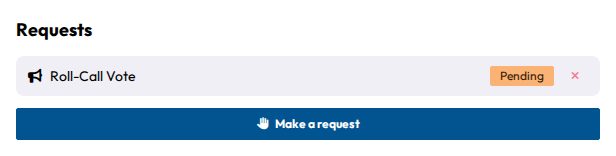
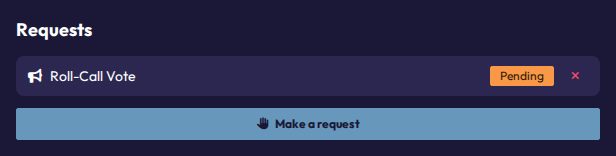
Your open requests are listed in the card with a Pending badge. With nothing open, the card says "No pending requests."
Rules
- One at a time per type: you can have only one pending request of each type. Types you already have pending don't show up in the list. If every type is pending, the card tells you so.
- Delegates only: some request types are reserved for delegates. Non-state actors don't see them. In the default set, NSAs can only use Right to Information, Right to Restore Order, Right to Clarify a Misunderstanding, Roll-Call Vote and Informal Session.
- Your committee: delegates can only send requests in their own committee. NSAs can send them in any committee they open.
- Nothing configured: if the admins haven't set up any request types, the button is greyed out and the card says "No request types have been configured yet. Ask your chairs to set some up."
Withdrawing a request
Changed your mind? Tap the × (Withdraw request) next to a pending request. You can only withdraw requests that are still pending.
What happens next
The chairs get a New request notification and handle requests in order of type, then by time. Once a chair marks your request as resolved, it disappears from your card. You don't get a separate notification. After that you can send the same type of request again.