Getting Started as a Chair
Accessing your committee
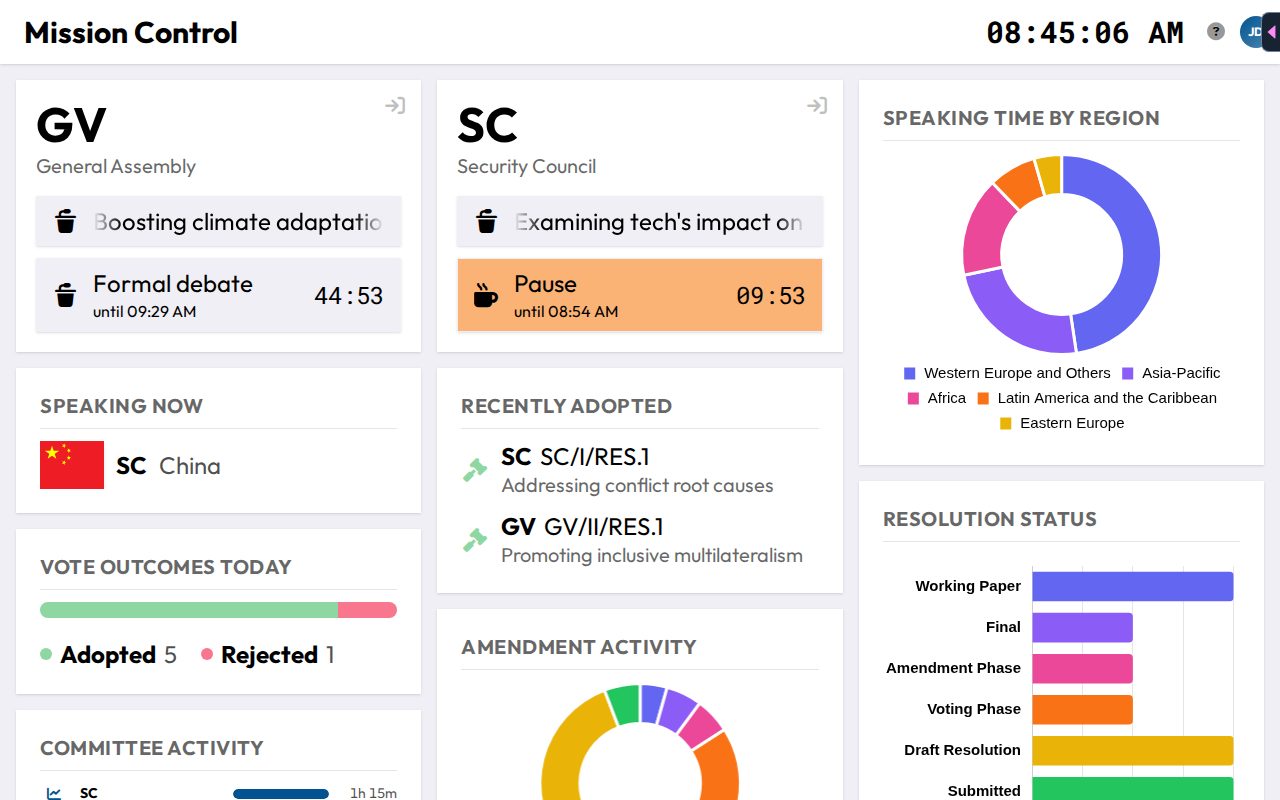
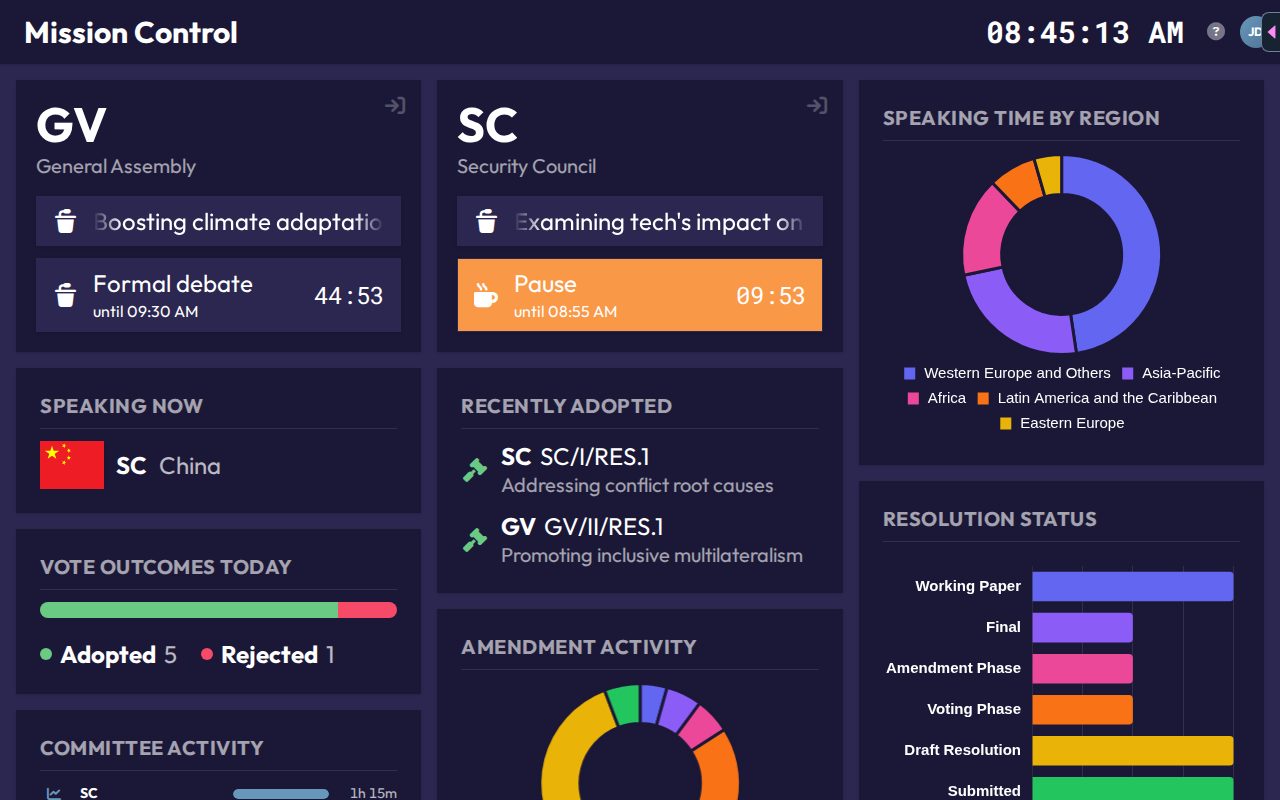
Open your conference from the launcher. As a chair you land on Mission Control, which lists every committee of the conference with its agenda item and status. Click a committee to open its Set up page. You can jump to any other committee later from the avatar menu in the top right.
Navigation
The dock at the bottom of every chair page holds the committee's pages. Its order decides the keyboard shortcuts:
| Page | Shortcut |
|---|---|
| Set up | Alt+1 |
| Presence | Alt+2 |
| General Speakers' List | Alt+3 |
| Voting | Alt+4 |
| Requests | Alt+5 (only if Requests is turned on) |
| Resolutions | Alt+6 with Requests on, Alt+5 otherwise |
Requests only appears when it is turned on in Committee Setup. Hover any dock icon to see its current shortcut. If a draft resolution is active, an extra Currently Active entry opens it. It has no shortcut.
Global shortcuts
These shortcuts work from any chair page, without navigating away:
- Alt+P: open (or refocus) the presentation window, the shared screen for the room's projector.
- Alt+S: open the status changer.
- Alt+D: open the State of Debate changer.
- Alt+V: open the vote setup, so you can start a vote without going to the Voting page.
- Shift+Space: press the button in the speech widget (see below).
Press Esc to close the status and State of Debate changers.
The speech widget
On every chair page except the speakers list, the top bar shows the current speaker, the current Point of Information speaker, the remaining time and one button. The button walks you through a speech step by step: Start Speech, Stop Speech, Start Question, Stop Question, Start Answer, Stop Answer, Next Question and Next Speech. The answer gets the same time as a Point of Information. Press Shift+Space to use it without the mouse.


Automatic alerts
CHASE watches your committee for you and shows a notice when something needs attention:
- When a status you set with an end time (e.g. a 10-minute informal meeting) runs out.
- When a speaker or Point of Information runs over time ("Speaking time over!").
- When Requests is on and a delegate or NSA sends a request. The New request notice names the request and who sent it and has a View requests link. It stays until you close it or the request is handled. Requests that were already waiting when you opened the committee don't pop up, but the Requests dock icon shows a red dot as long as anything is pending. See Requests.
Getting help
The ? button in the top bar opens the manual page for the screen you are on. It also offers Take the tour, a short guided walk through the controls of that page.
Press Ctrl+K (⌘K on a Mac) or / to open the command search. Type a few letters of what you want, for example "next speech" or "voting", and press Enter. A command does exactly what its button does, confirmations included, and the list shows each keyboard shortcut. Hover the ? button to see the shortcut.
Offline demo
The offline demo runs on a single device, so a few things are not available there: Resolutions, Device-Based Vote, the Self-add to Speakers List and Requests toggles, NSA attendance, and the Attendance and Statistics pages.
Your first session, in order
- Committee Setup: check your settings before the room fills up, and turn on Requests if your committee takes motions digitally.
- Roll Call & Attendance: establish who's present.
- Agenda & State of Debate: set what's being discussed and the committee's status.
- Running the Speakers List: open the floor.
- Requests: handle points and motions as they come in.
- Running Votes: whenever the committee needs to decide something.
- Managing Resolutions: if your committee drafts and adopts resolutions.