Getting Started as an Admin
Two levels of "admin"
CHASE distinguishes between:
- Conference Admin: the Admin role assigned to a specific conference (via Users & Roles). Gives full configuration access to that one conference.
- Global Admin: a platform-level admin. Global admins can additionally create brand-new conferences, delete conferences, and configure any conference, not just ones they've been explicitly added to.
Global Admin rights come from an admin role in your login provider or from an email or domain allowlist, both set up by whoever hosts your CHASE instance. If you run CHASE yourself, see the self-hosting guide.
The launcher
What you see after logging in depends on your access level.
- Conference Admins and Team Members see a card for each of their conferences. Click Open conference to go to the Mission Control dashboard.
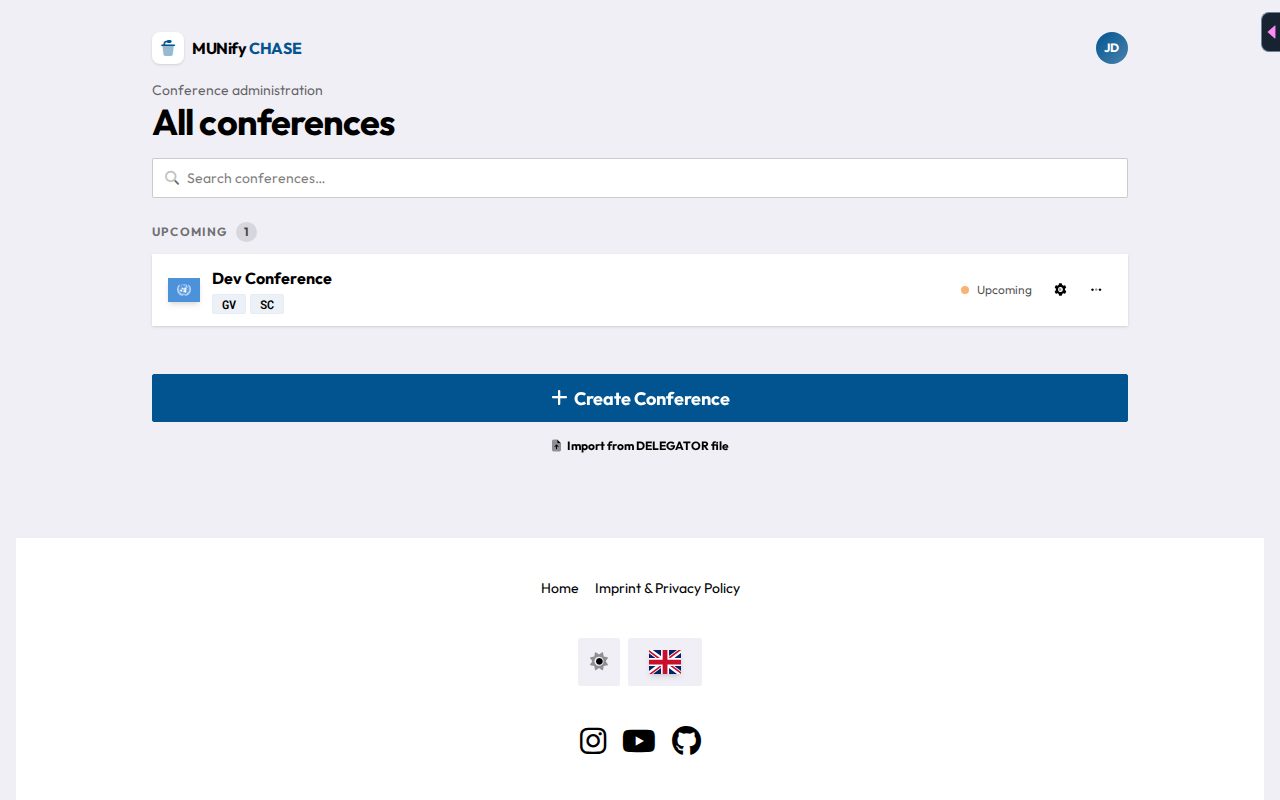
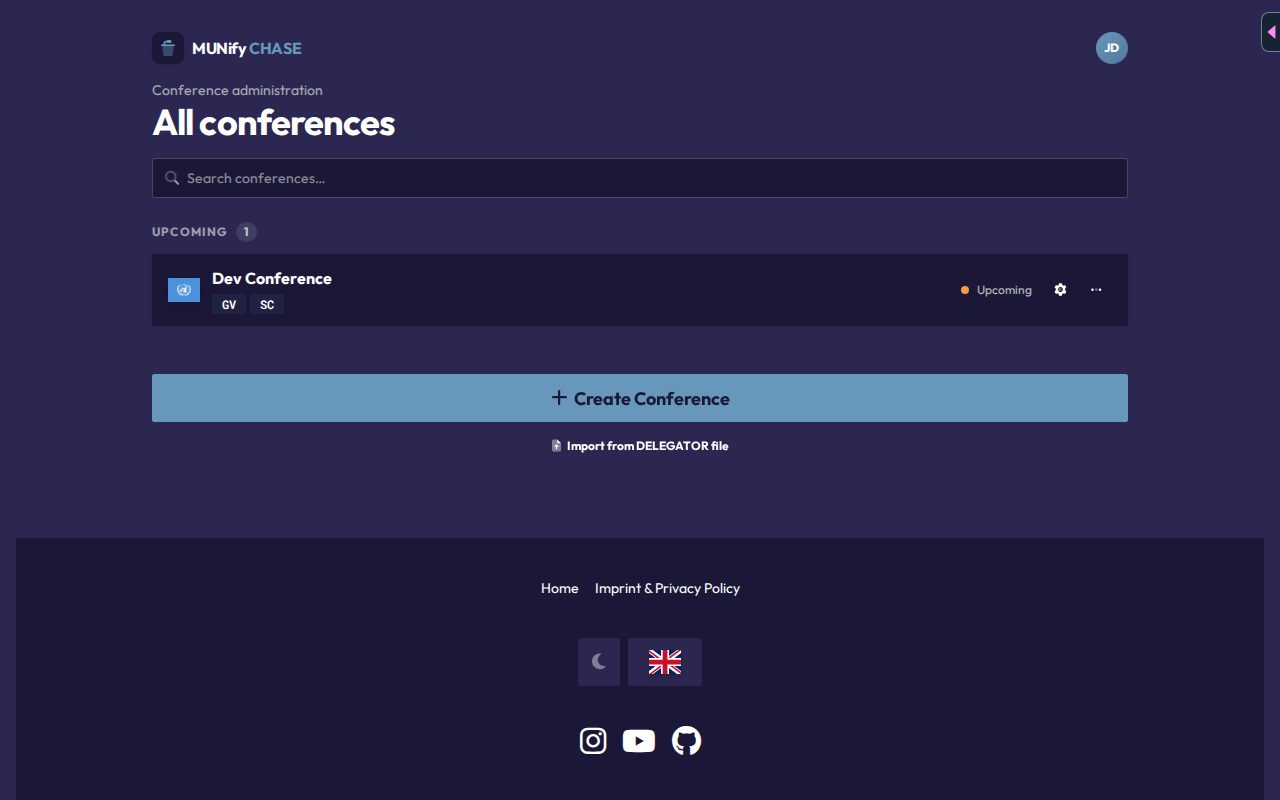
- Global Admins see All conferences, grouped into Active, Upcoming and Past, with a Search conferences… box at the top. Each row has a gear icon (Configure) that opens Configuration directly, and a More menu (…) with Delete.
Deleting a conference
Only Global Admins can delete a conference. Open More (…) on its row, choose Delete, and type the exact conference name to confirm. This can't be undone and removes all data of that conference.
Getting into Configuration
Inside a conference, the menu in the top bar holds Mission Control, Attendance and Statistics for Admins and Team Members. Admins also get Configuration, which is organized into tabs:
- General: conference-level settings (see Conference Setup)
- Users: inviting people and assigning roles (see Users & Roles)
- Committees: creating committees (see Committees & Delegations)
- Delegations: adding countries/delegations
- Non-state Actors: configuring NSAs and UN actors (see NSA Management)
- Requests: the request types delegates and NSAs can send to the chairs (see Requests)
The help button (?) in the top bar opens this manual on the page for whatever screen you're on. Ctrl+K (⌘K on a Mac) opens the command search, which also jumps to any committee, Configuration tab or attendance tab.
Creating a conference
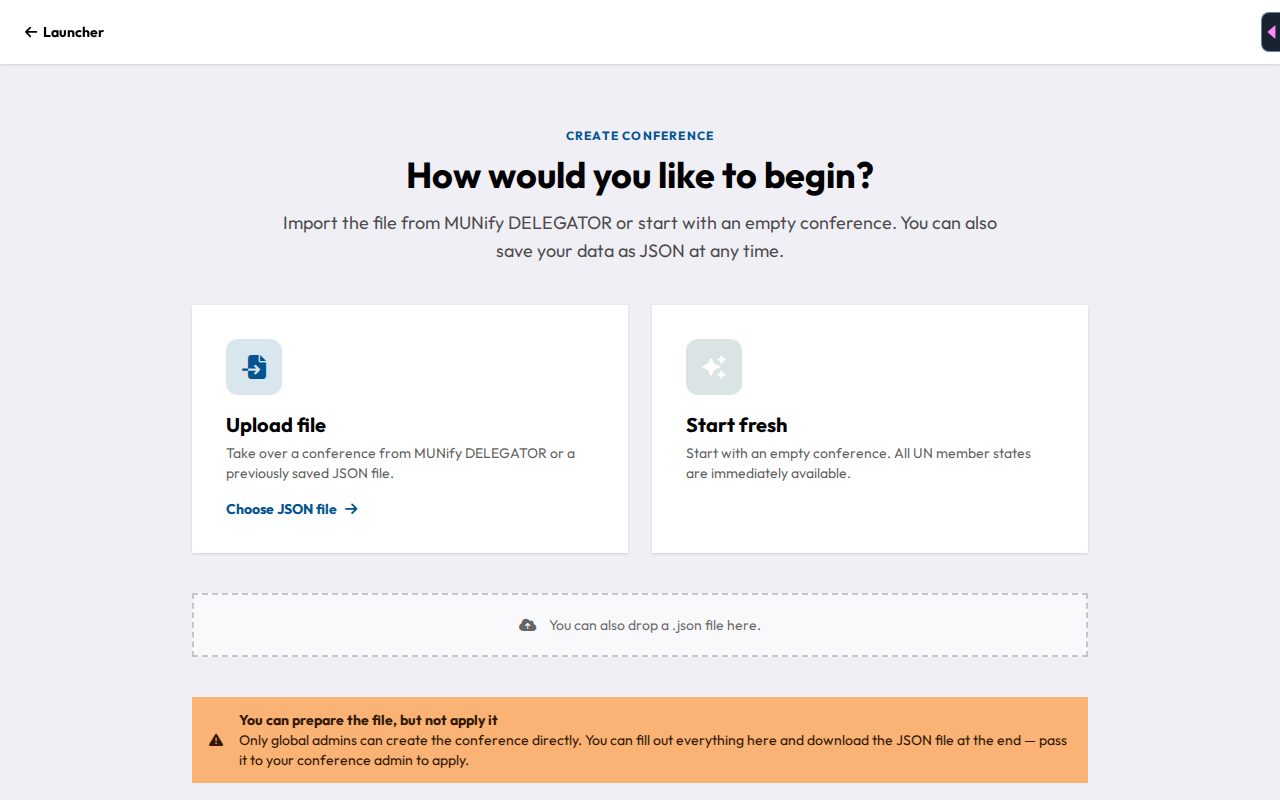
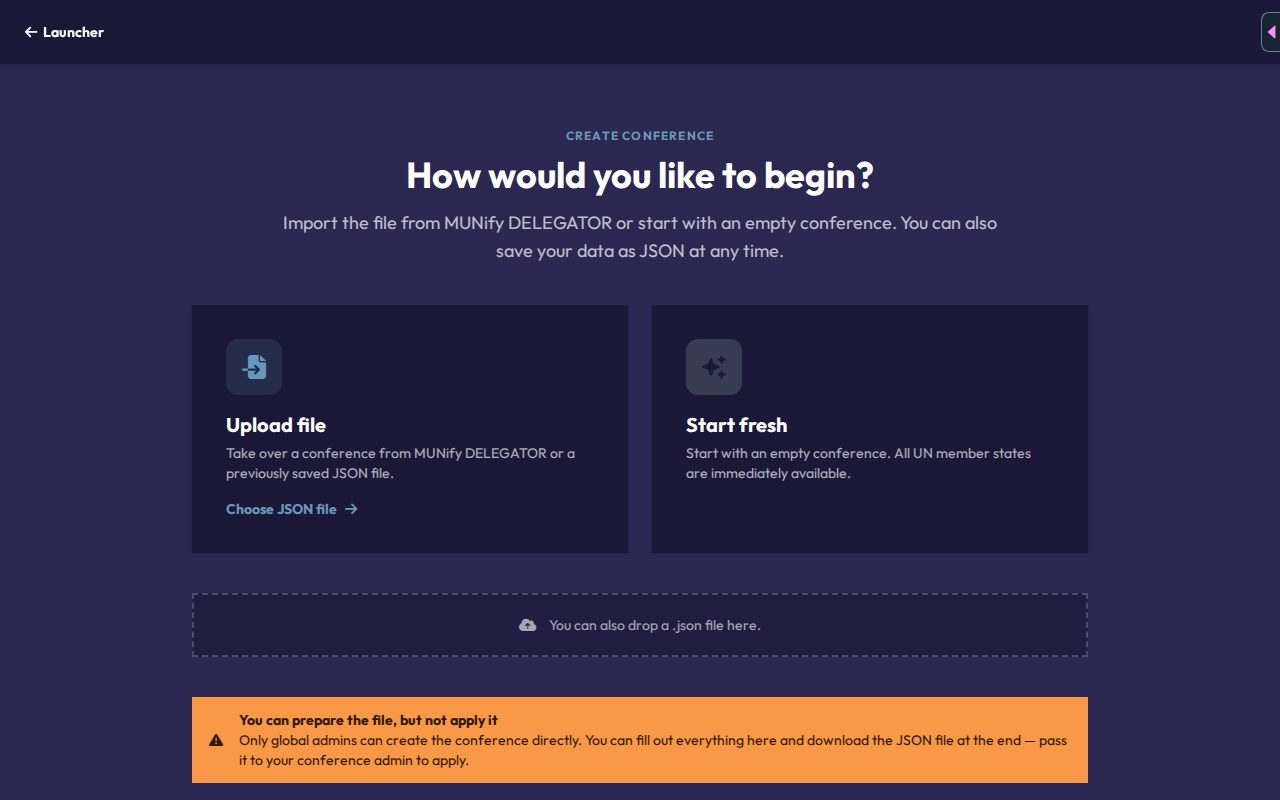
New conferences are created through the same Import flow used for pulling data from MUNify DELEGATOR (see Importing from DELEGATOR). Global Admins find Create Conference and Import from DELEGATOR file at the bottom of the launcher. Other users also see Create Conference. They can fill in the whole wizard but can only download the result as a JSON file for a Global Admin to apply.
Offline demo conference
You can try CHASE without an account. On the CHASE homepage, click Use it offline or Start an Offline Conference (both marked Beta). This opens a demo conference called "Local Demo Conference" with sample committees and delegations, straight in Mission Control, and you have full admin rights there.
- No login is needed and nothing is sent to a server. Data is stored only in this browser.
- Features that need a server are hidden: the Users tab, Attendance, Statistics and device-based voting.
- Offline mode is still in beta and may behave unexpectedly.