Whiteboard
Every committee has a shared whiteboard you can use to put something in front of the whole room: a schedule, an uploaded image, or a scannable link.
Editing
From the Set up page, click Edit on the whiteboard card to open the editor, a rich text surface with a formatting toolbar (headings, lists, etc.) and a floating menu for quick formatting when you select text.
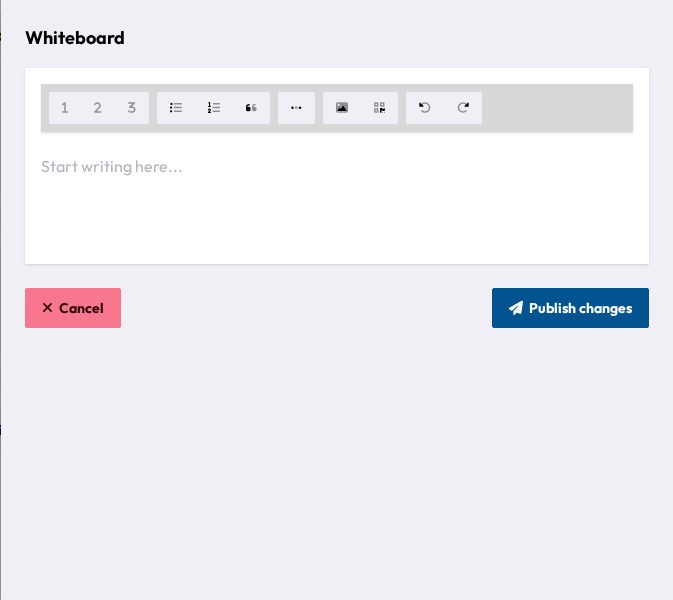
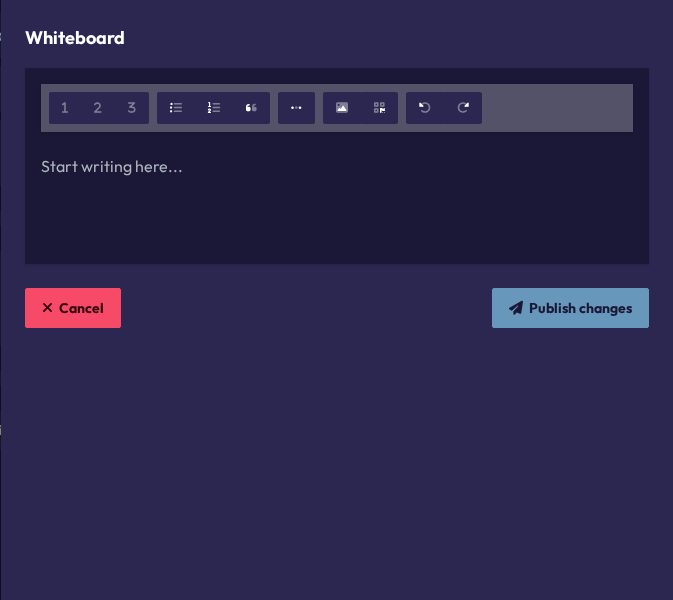
Two special tools:
- Picture: insert an image, either with Upload from your device or from a URL, then Insert image.
- Generate QR-Code: insert a scannable QR code. Choose To Committee to link to your committee (To participant view or To the working papers), or Custom URL to link anywhere else, then click Use QR-Code.
When you're done, click Publish changes to push it live, or Abort to discard your edits.
Visibility
On participants' dashboards the whiteboard appears as soon as it has content and disappears when you clear it. On the presentation screen, the Default Layout and Layout for Small Screens always include a whiteboard tile, which shows a placeholder while the whiteboard is empty. When a draft resolution is active, the presentation screen switches to the resolution layout, which has no whiteboard.