Getting Started as a Participant
This guide is for anyone taking part in a committee session as a Delegate, Spectator, or Non-State Actor (NSA), collectively "participants." If you're chairing a committee, see the Chair Guide instead.
Logging in
CHASE is a web app, so no installation is required, though a native desktop app is also available on some platforms. To get started:
- Open the CHASE URL your conference organizers gave you (or the desktop app, if you were given an installer).
- Log in through your conference's identity provider. Your conference administrators control who's allowed to log in. If you can't get in, contact them, not CHASE support.
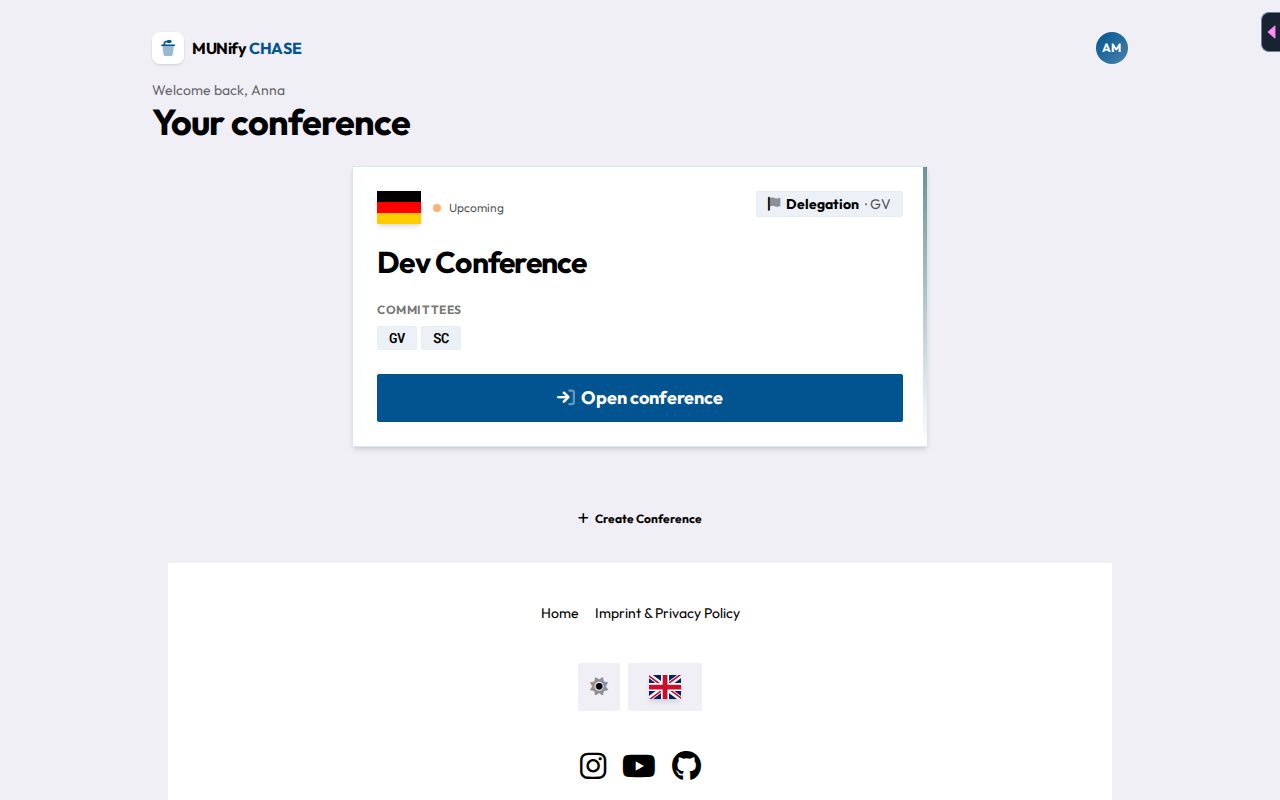
- You'll land on the Launcher. It shows one card per conference you belong to, with your role (for example Delegation with your country and committee), the dates, the location, the committees, and an Open conference button.
If you don't belong to any conference yet, the launcher says No conferences yet. Someone hasn't added you yet, so reach out to your conference's leadership or admins.
Finding your committee
What happens when you click Open conference depends on your role:
- Delegates go straight to their own committee dashboard. If you haven't been assigned to a committee yet, you'll see a Waiting for Assignment screen until an admin seats you.
- Non-state actors and spectators first see a page with every committee in the conference, showing each one's name, abbreviation, active agenda item and current status (e.g. "Formal debate" or "Suspension"). Click a committee to open it.
Your role is set per conference by the conference's administrators:
| Role | What you'll see |
|---|---|
| Delegate | Full participant view for the delegation you represent: speakers list, requests, voting, resolutions. |
| Spectator | Read-only view of the committee (speakers list, current status) without the ability to speak, vote, or submit papers. |
| Non-State Actor (NSA) | Represents an organization rather than a country. You can join speakers lists and send requests in any committee. You can't vote, write or sponsor papers, or propose amendments. Chairs check you in by scanning your printed QR badge. |
Even with a QR badge, NSAs log in like everyone else to use the speakers list and requests.
Your committee dashboard
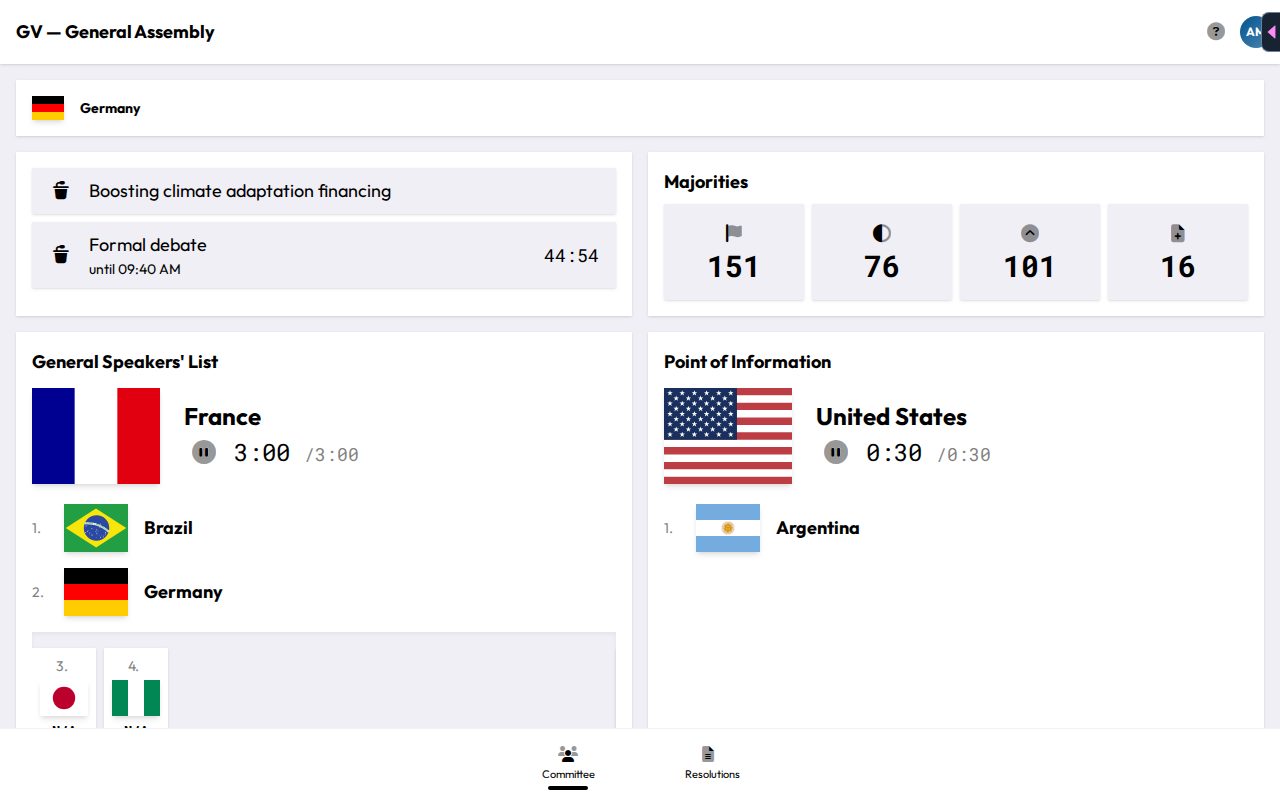
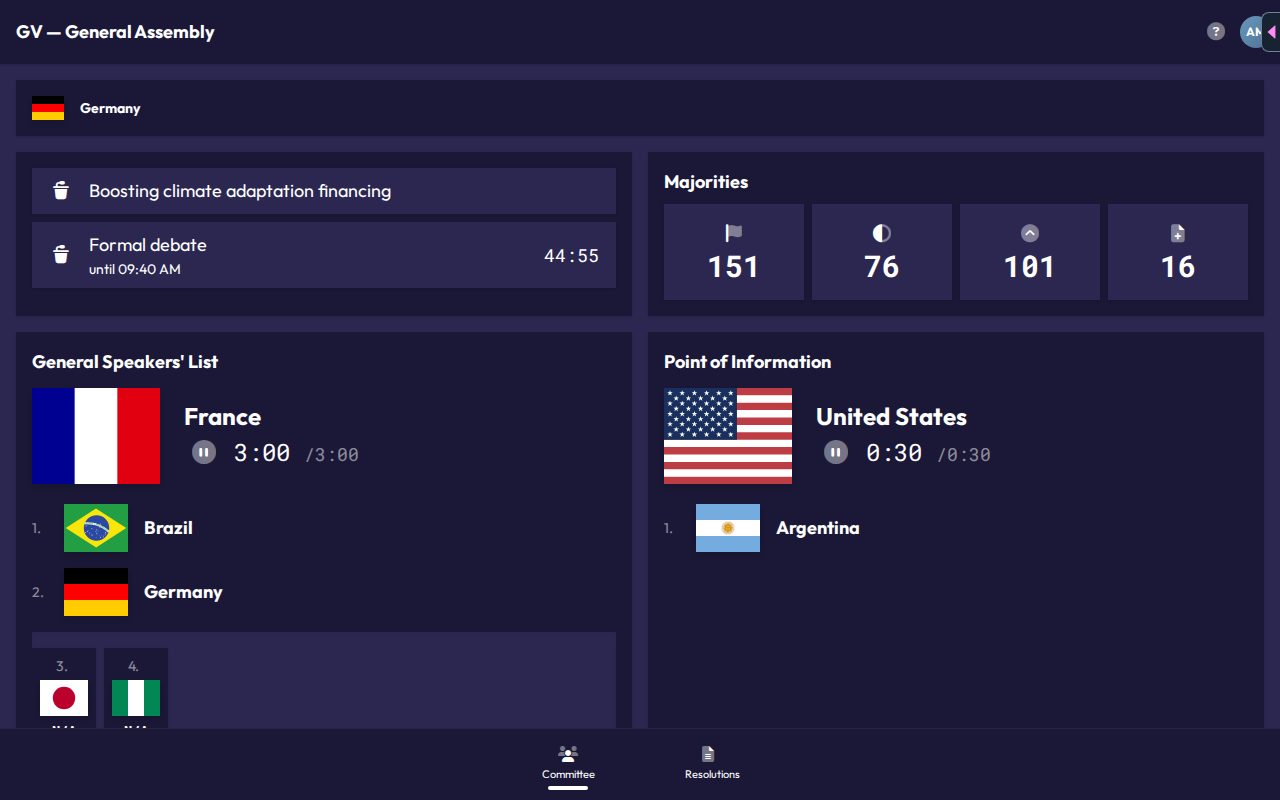
Your dashboard shows:
- Identity card: your country/organization's flag and name, so it's always clear who you're representing.
- Committee status: the current agenda item and committee status (e.g. "Formal debate", "Suspension"), with a countdown if the chair set a duration.
- Majorities: how many delegations are present, the votes needed for a simple and a two-thirds majority, and how many sponsors an amendment needs, updated live as attendance changes.
- Speakers list (delegates, NSAs and spectators): see Speakers List & Speaking.
- Requests: send requests to the chairs, if they've turned this on. See Requests.
- Resolutions: a link into your committee's working papers and draft resolutions.
- Whiteboard: if the chair has shared something to the room's whiteboard, it appears here.
Everything on this dashboard updates live, so you don't need to refresh the page as debate progresses.
The bar at the bottom of the screen switches between Committee (this dashboard), Resolutions (the papers list) and Currently Active, the draft resolution being debated right now. Currently Active only appears while the chair has marked a draft resolution as active.
The menu and help
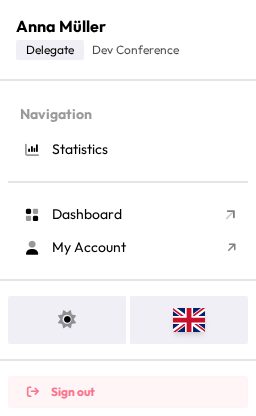
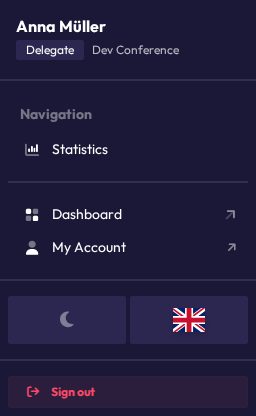
Tap your initials in the top right to open the menu. It shows your name, your role and the conference, and lets you:
- open Statistics (see Your Statistics)
- go back to the Dashboard, the launcher with all your conferences
- open My Account, your MUNify account page, in a new tab
- switch the theme and language
- Sign out
Delegates have no back arrow in the committee view, so use Dashboard in this menu to get back to the launcher.
The ? button next to your initials opens the manual page for the screen you're on and offers a guided tour of it.
Press Ctrl+K (⌘K on a Mac) or / to search for actions and pages, for example "add me" or "make a request", and press Enter. A command does exactly what its button does.
Staying connected
CHASE works offline-first. If your connection drops momentarily, a banner will let you know, and the app keeps showing the last known state rather than freezing or erroring. Reconnect and it catches back up automatically.
Next steps
- Speakers List & Speaking: requesting the floor and following debate
- Requests: sending requests to the chairs
- Voting: how the different vote types work from your side
- Attendance: how check-in works and viewing your own history