Reviewing Amendments
Once the Amendment Phase is open on a draft resolution, delegates' proposed amendments show up in a queue, each with its text and current sponsor count. Amendments that haven't been submitted yet are listed too, but you can only present, vote on or decide submitted ones. Only the proposer can withdraw an amendment.
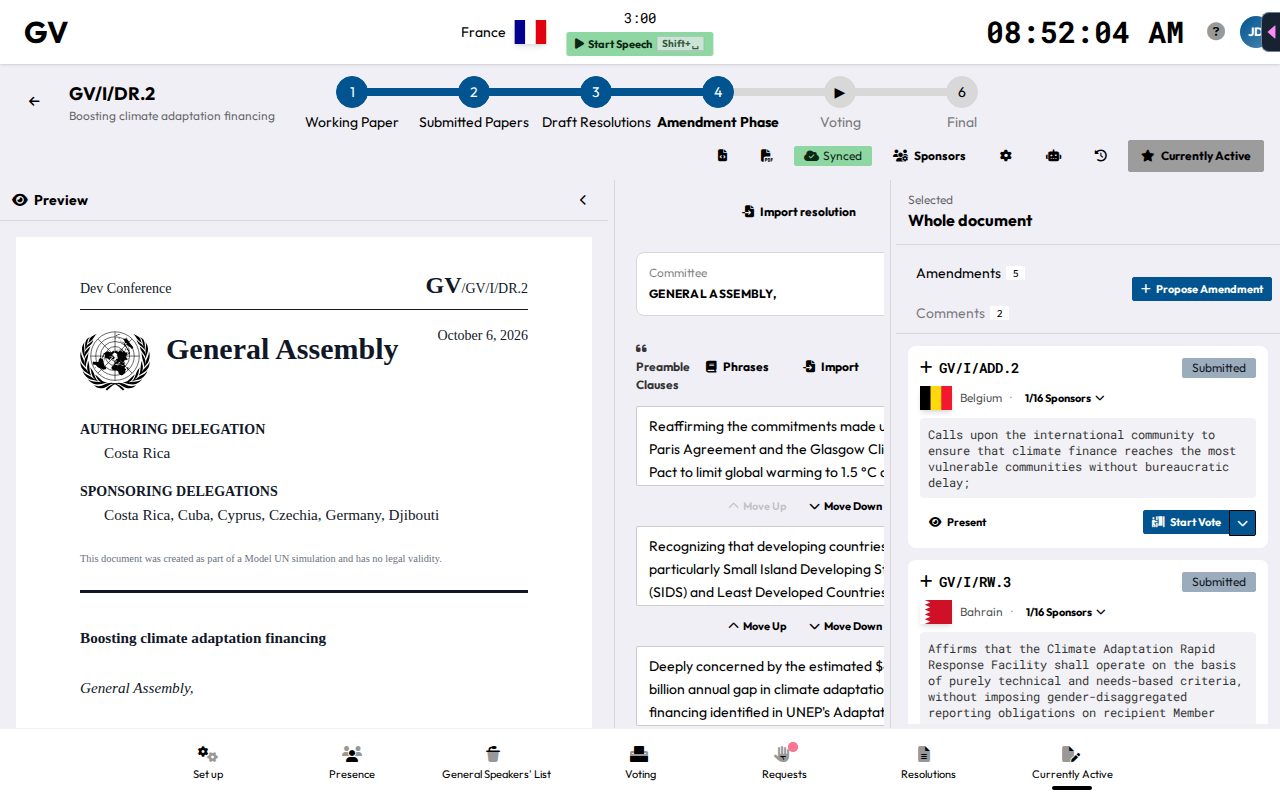
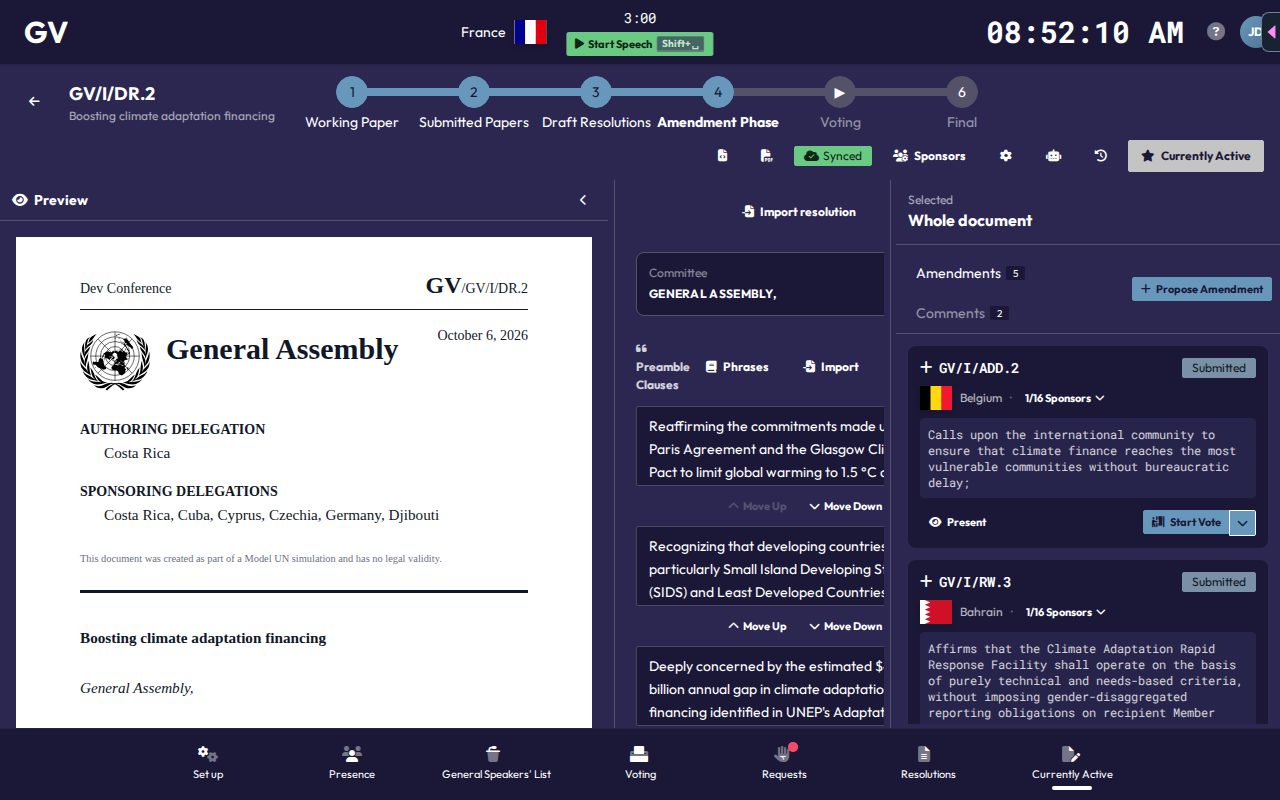
Deciding an amendment
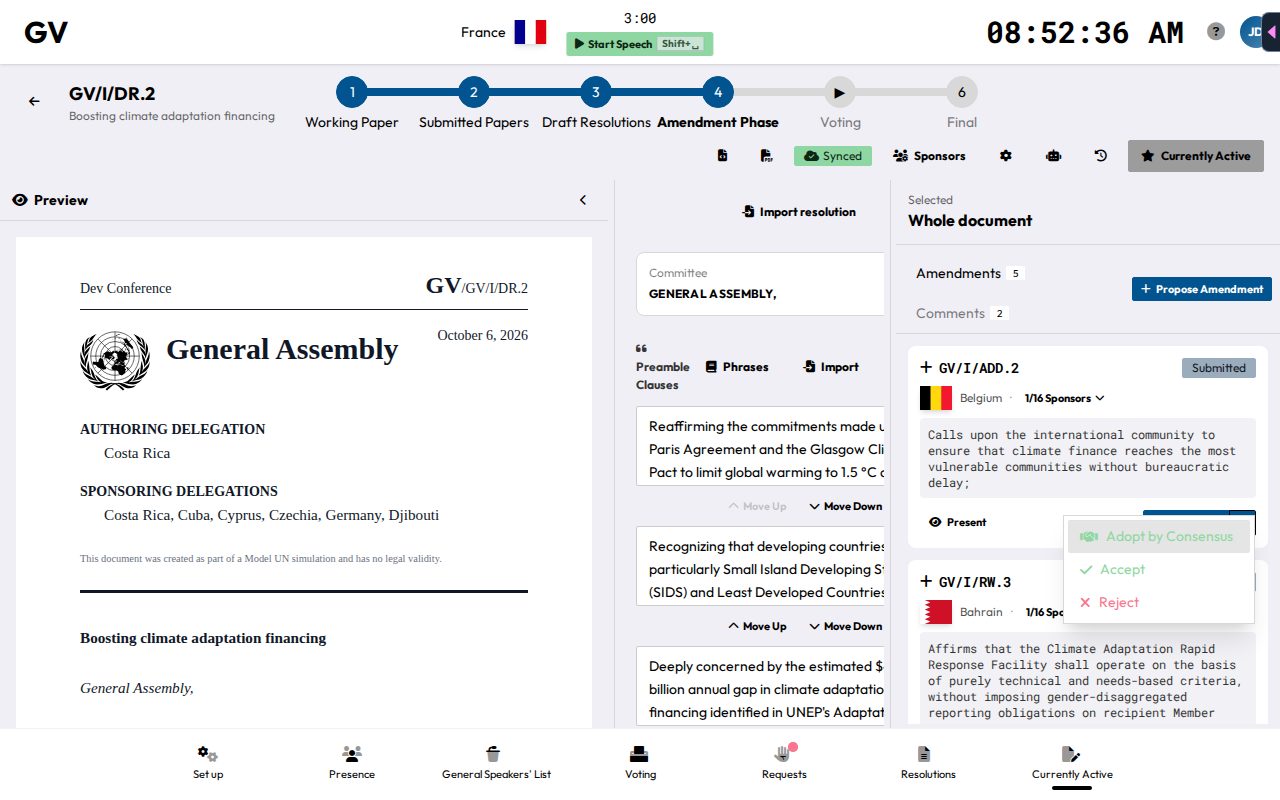
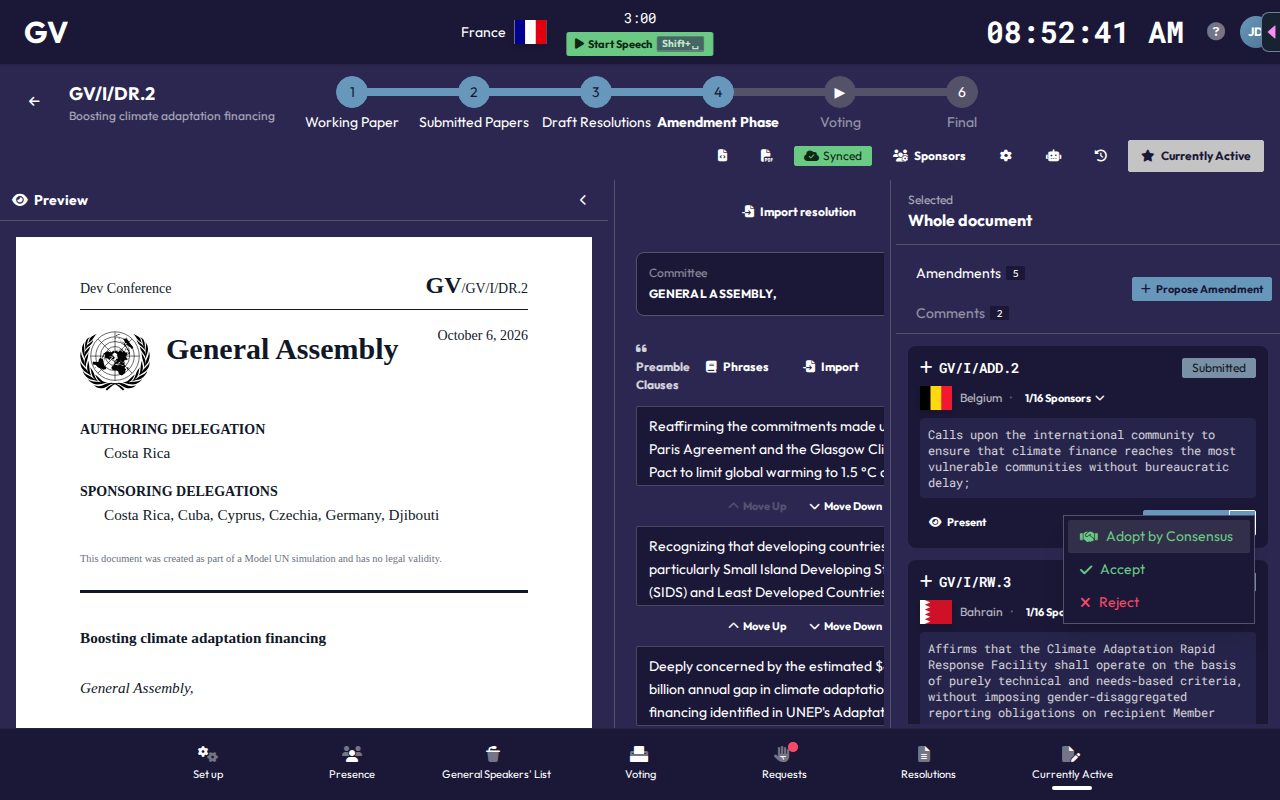
Next to each amendment's Start Vote button, the arrow (Decide manually) opens a menu:
- Adopt by Consensus: accepts it without a formal recorded vote, for when the room clearly agrees without objection.
- Accept: applies the change to the document immediately.
- Reject.
Each choice asks you to confirm first.
Putting an amendment to a vote
Present pushes an amendment to the presentation screen, and Stop Presenting takes it down again. This only works while the paper is the committee's active draft resolution (the star in the paper header).
Start Vote presents the amendment for you and opens the vote setup, pre-filled with a show-of-hands vote, simple majority and abstentions allowed. You can change these before starting. Once the vote concludes, you'll get an outcome prompt pre-filled based on the result (which you can still override) before confirming. The amendment automatically comes off the presentation screen afterward, and also if you cancel the vote.
Reconciling amendments after a change
When you accept an amendment that changes a clause's text, other submitted text changes for the same clause may no longer fit. If there are any, CHASE opens a two-step review:
- Obsolescence: decide which of the other amendments are now outdated given the change you just made.
- Text adjustments: decide how amendments that still make sense should be reworded to match the new text.
The review appears whether or not AI is turned on. With AI assistance on, CHASE pre-fills both steps with suggestions, and you confirm or change them. The AI preference is personal to each chair, not a conference-wide setting (see AI Assistance).