Importing from DELEGATOR
New conferences in CHASE go through the same wizard, whether you're pulling data from MUNify DELEGATOR (the sister registration product) or starting from nothing. Anyone can fill it in, but only Global Admins can create the conference at the end.
Starting the wizard
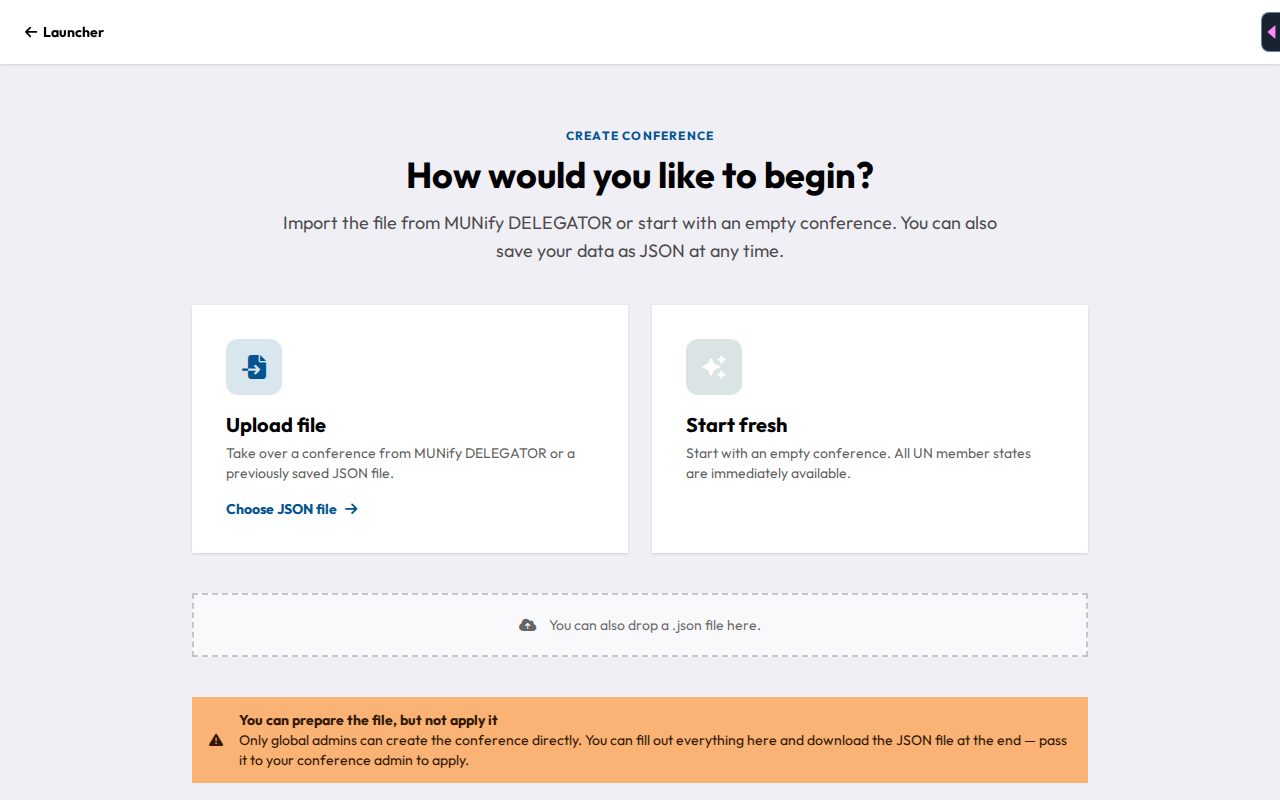
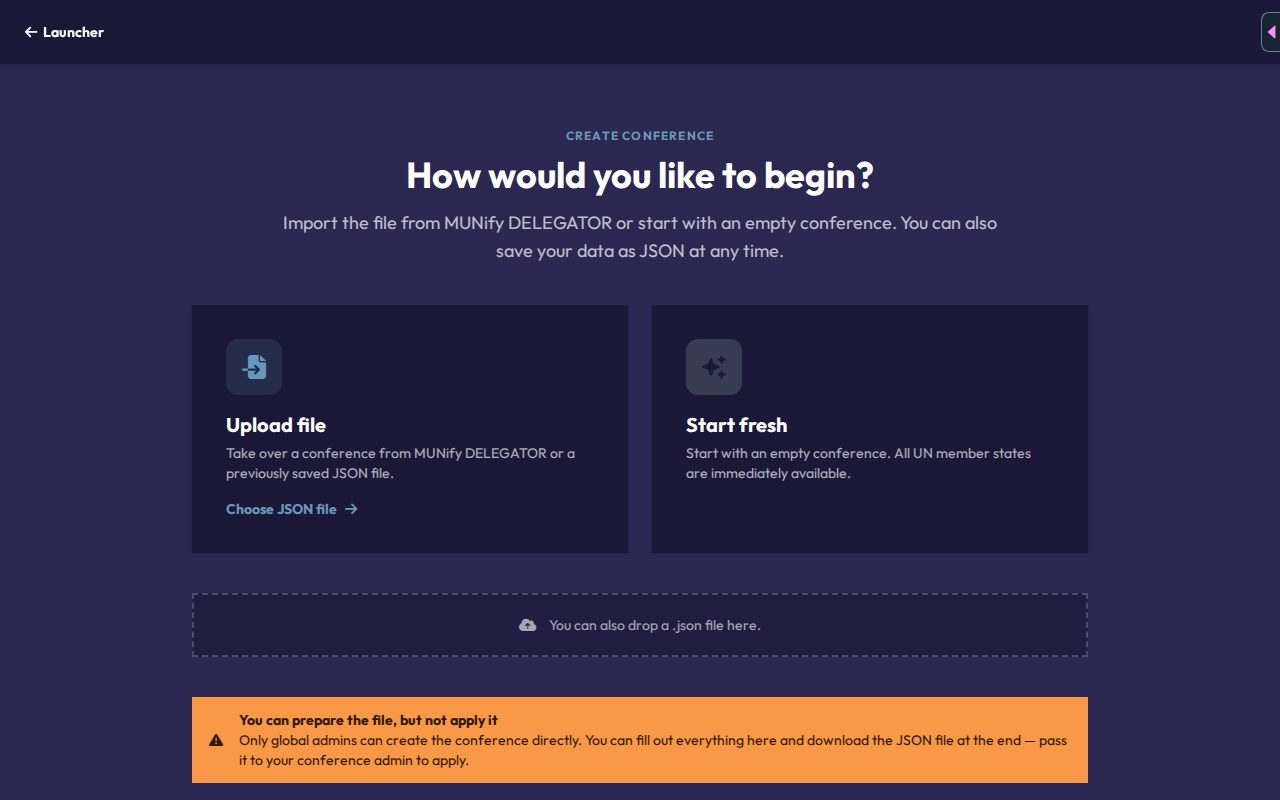
From the launcher, click Create Conference (or Import from DELEGATOR file). You'll choose between:
- Upload file: a DELEGATOR JSON export, or a previously saved JSON file (Choose JSON file, or drop a .json file onto the page).
- Start fresh: an empty conference where every UN member state is immediately available as a potential delegation, ready to assign and configure by hand.
If you're not a Global Admin, a notice explains that you can prepare the file but not apply it.
Steps
- What is your conference called?: title, start/end date, location. Under Conference ID you can take over the ID from DELEGATOR. Leave it as generated otherwise.
- Committees: create your committees and add their Agenda items with Add Item.
- Delegations: review imported delegations, or use Add Country on a committee to add delegations with the same country-code dialog used in Mission Control.
- Other actors: non-state actors and UN actors. These are optional.
- Requests: the request types delegates can send to the chairs. Use Load default set or Add request, and adjust Enabled and Delegates only per type. You can change everything later in the Requests tab.
- Edit: a summary of the whole conference with any notices, each with a Jump button to the step that needs fixing.
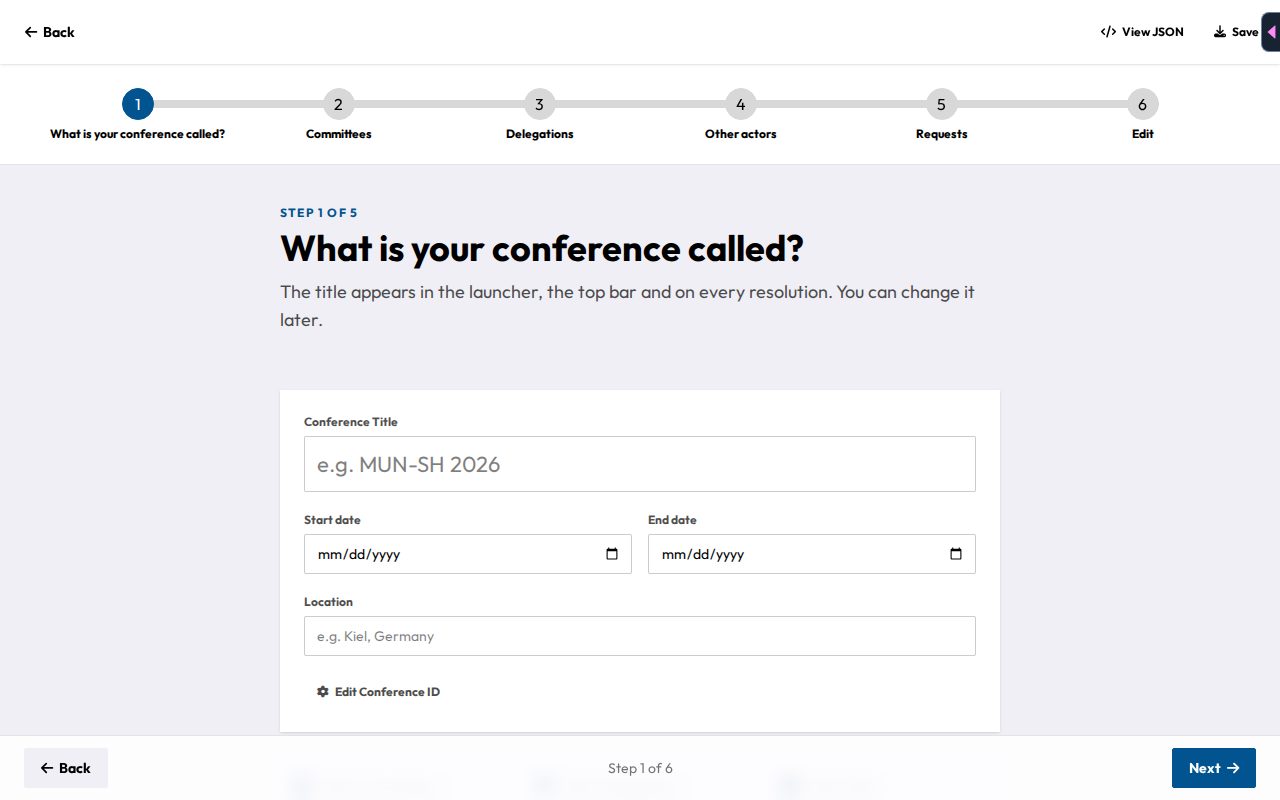
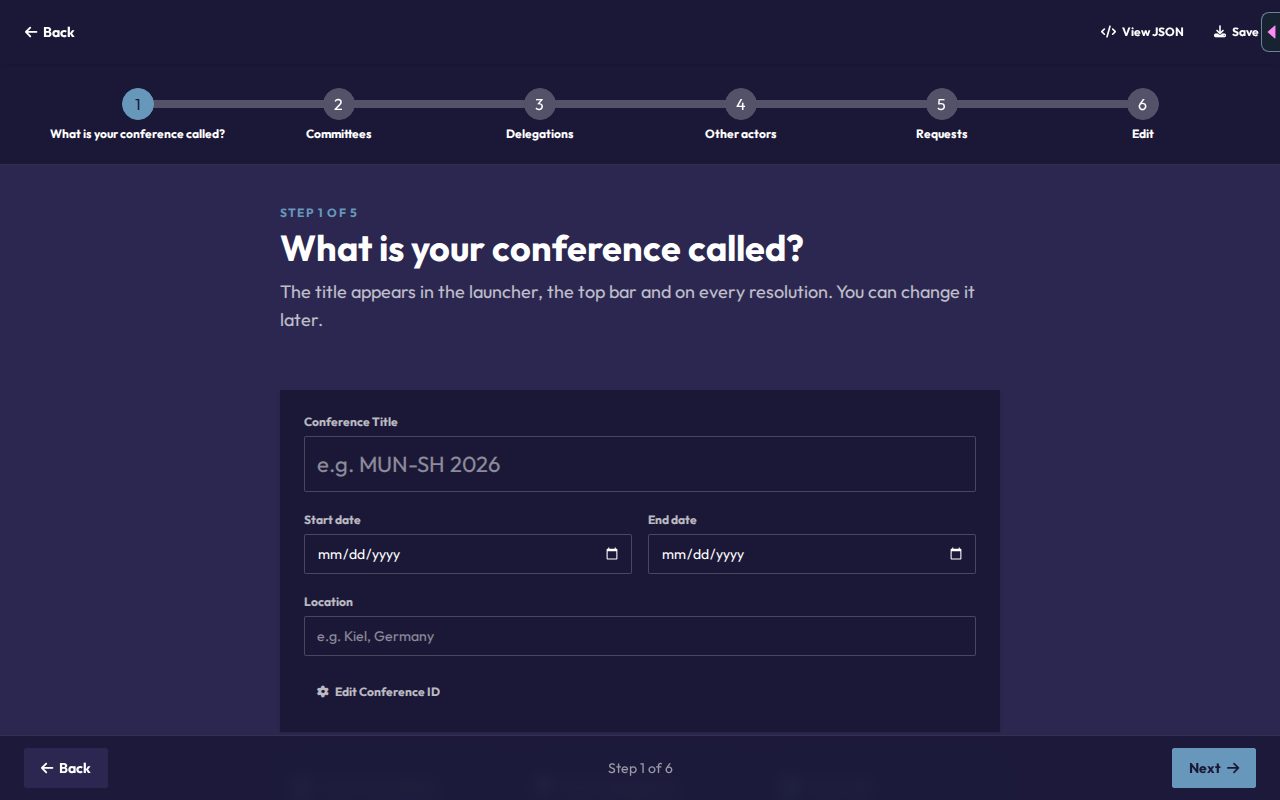
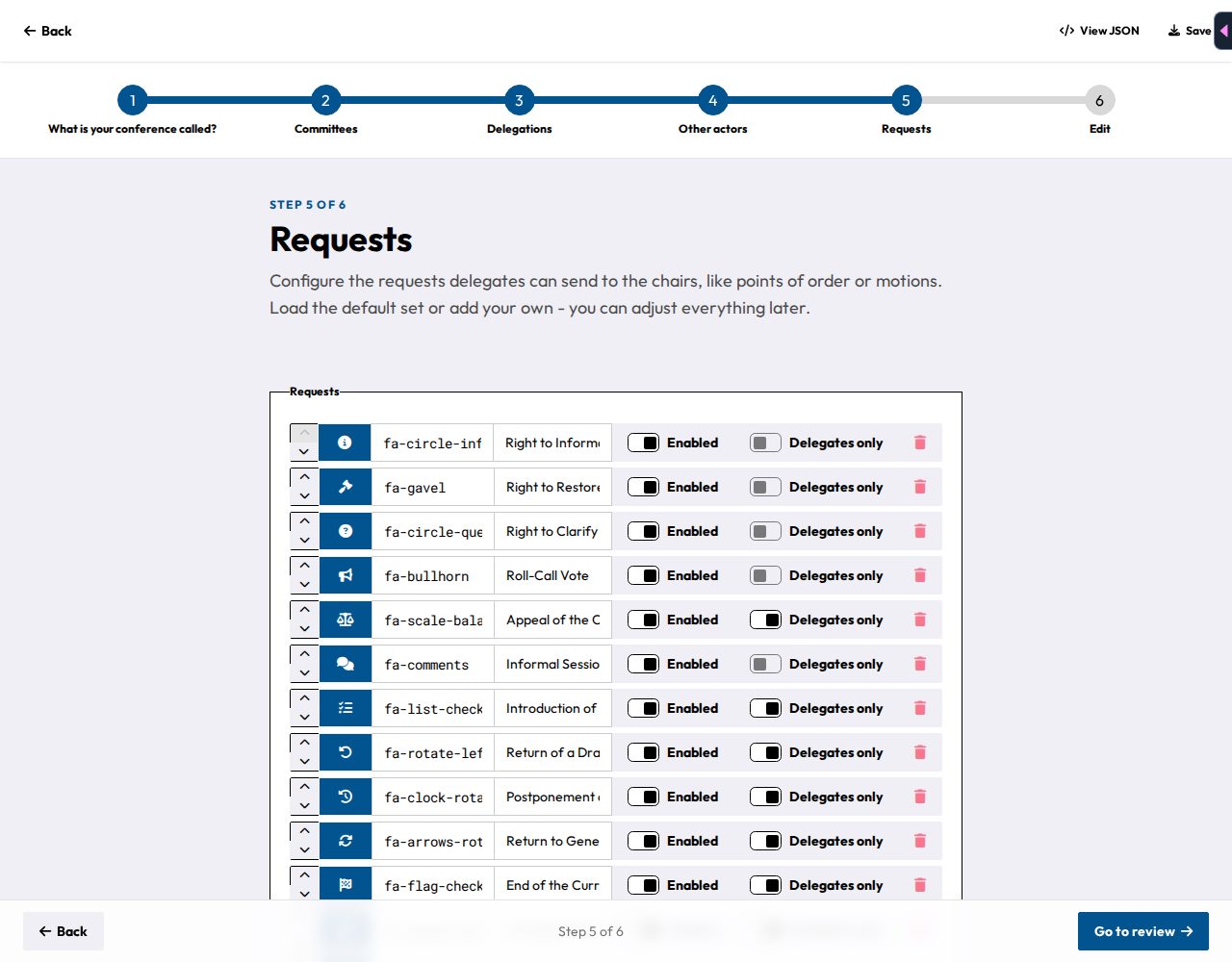
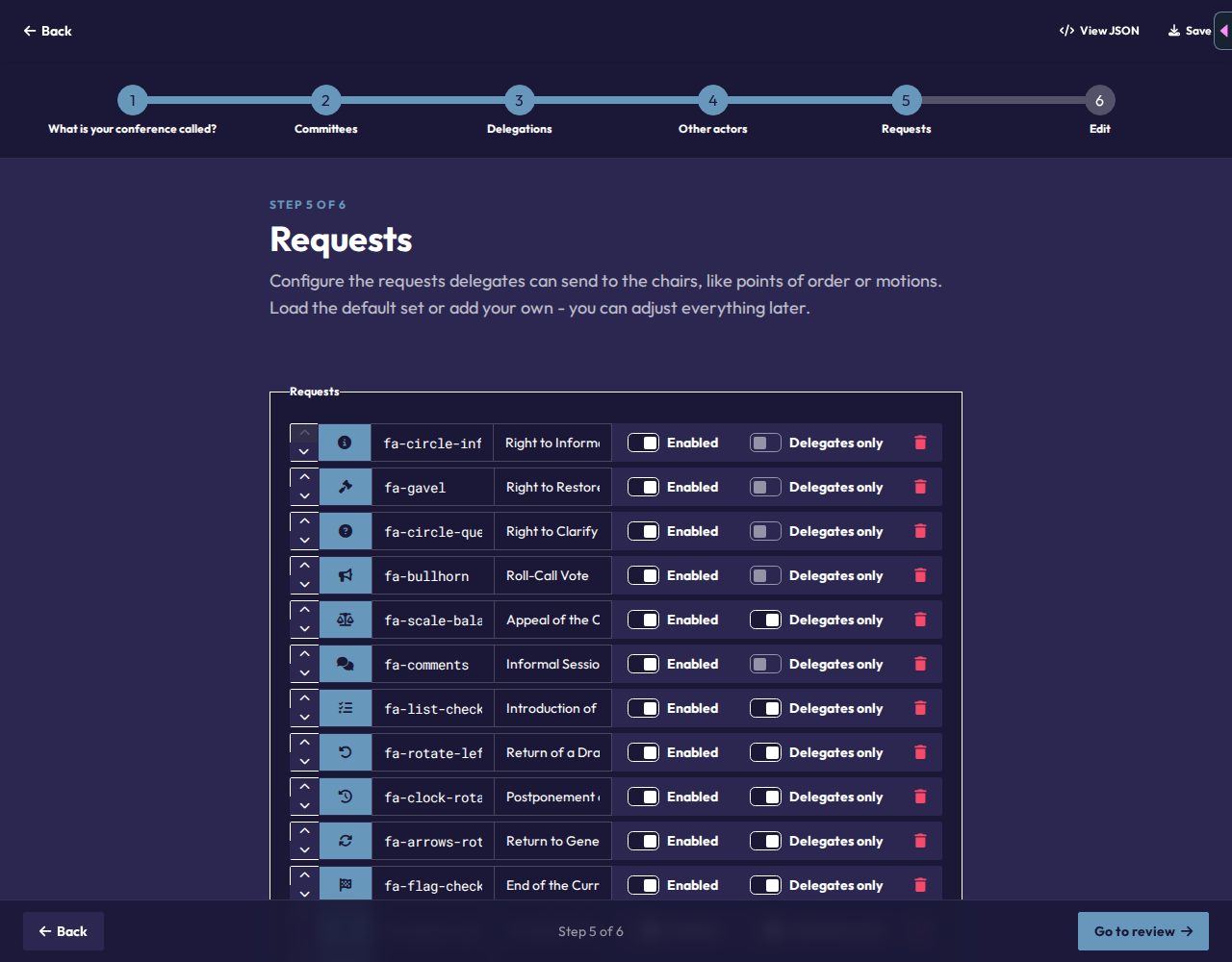
Move through the steps with Back and Next at the bottom, or click any step in the step bar at the top. View JSON in the top bar shows the raw import data as you go, and Save downloads it as a JSON file. This is handy for saving your progress or debugging an import that isn't behaving as expected.
Checks before finishing
These problems block creating the conference:
- the conference title is missing,
- no committees exist,
- a committee has no name or no abbreviation,
- two committees share a name or an abbreviation.
A committee without delegations only shows a warning.
Finishing
On the final Edit step, Global Admins click Create Conference. You're taken straight to the launcher, where your new conference now appears. Everyone can click Download as JSON to save the file, for example to hand it to a Global Admin who can apply it.