Roll Call & Attendance
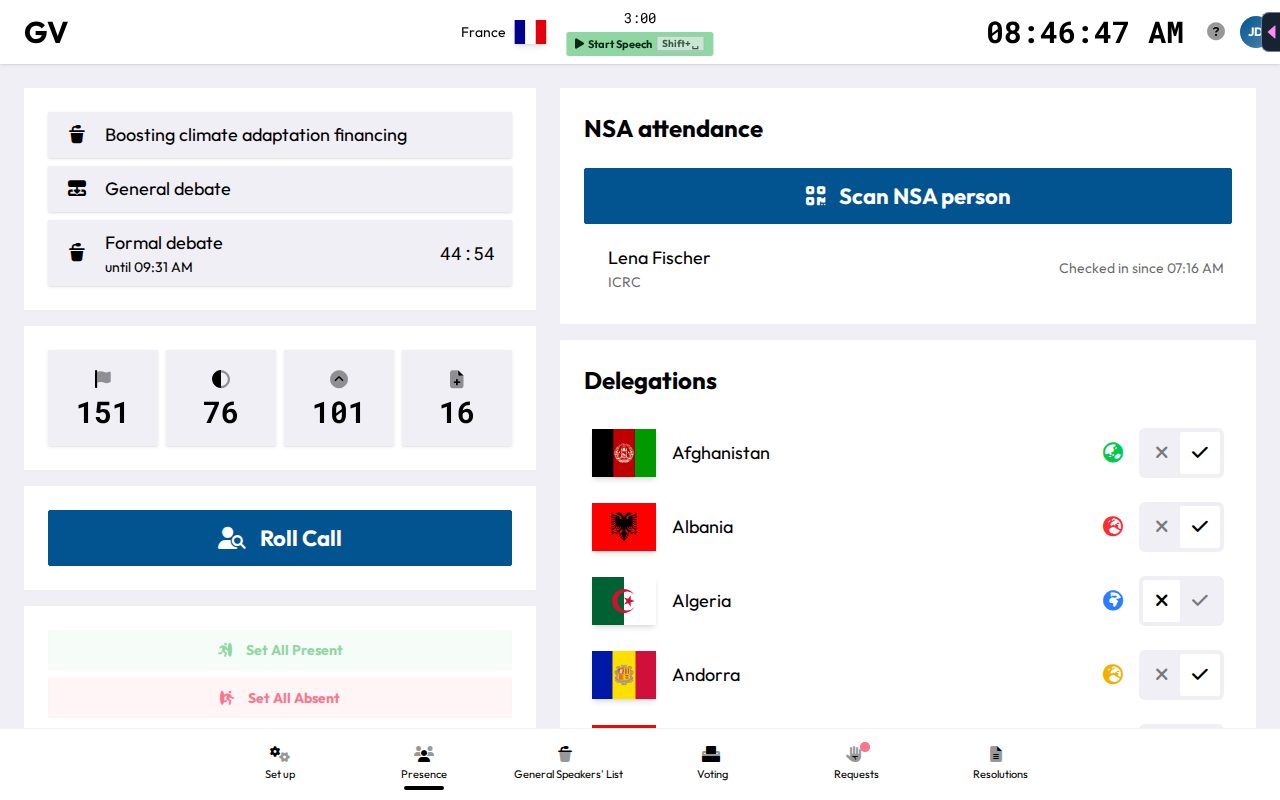
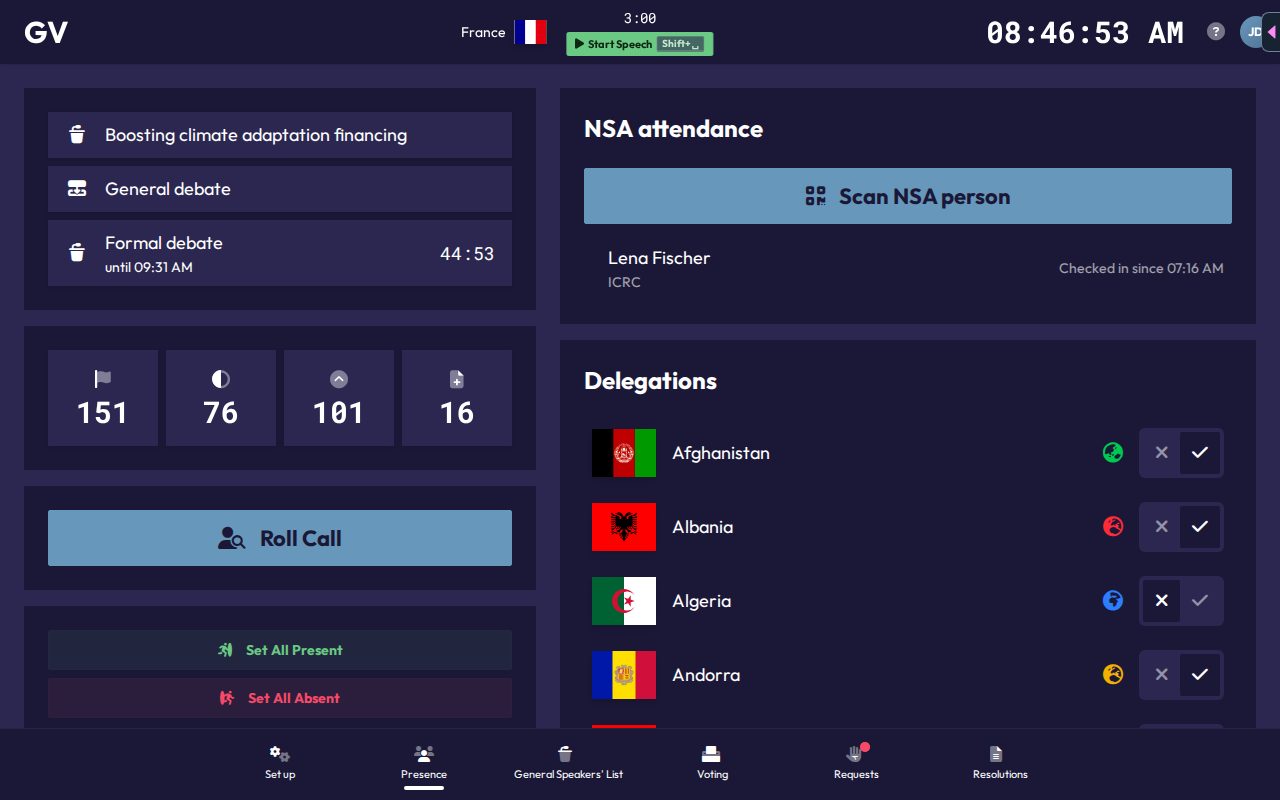
The Presence page (Alt+2) is where you track who's in the room.
Roll call
Click Roll Call to open a full-screen, one-at-a-time walkthrough of every delegation:
- Present (
L) or Absent (J). Marking either auto-advances to the next delegation. - Move up and down with the arrow keys if you need to jump around.
- Finishing the last delegation shows "Roll call completed" and closes the walkthrough.
- Esc closes the walkthrough. Closing ends the roll call, so finish it in one go.
If a roll call is still open on another device, the Presence page shows "Roll call in progress (member X / Y)" and a Resume Roll Call button instead.
Every roll call you run is logged. The N past roll call(s) list on the Presence page shows when each one started and finished, who ran it, and the present/total count.
Quick presence toggles
Each row under Delegations has a Present/Absent toggle, useful for correcting a single entry without starting a whole new roll call. Set All Present and Set All Absent change every delegation at once. UN Actors are listed for reference only and have no toggle.
Why presence matters
Marking someone present isn't just bookkeeping. It directly gates whether they can add themselves to a speakers list or vote on their device, and it feeds the live majority calculations shown throughout the chair interface.
Non-State Actor badge scanning
The NSA attendance card lists everyone currently checked into your committee, each with "checked in since HH:MM". Click Scan NSA person to open the scanner drawer:
- Choose Check in or Check out.
- Scan their printed QR badge with your camera, or use Enter code manually with their 6-character code if scanning fails.
- A running log shows the last 10 scans (green with a name for success, red for an error), plus an audio cue (a high beep for success, a low one for an error).
Checking someone in automatically checks them out of any other committee. Checking out works even if they are currently checked in elsewhere, and the log then says they were checked out of another committee. The NSA card is not available in the offline demo.
Conference-wide attendance dashboard
A separate Attendance page (avatar menu, outside any single committee) gives a conference-wide picture, useful for the Secretariat as well as chairs. It has four tabs:
- Not present: NSAs not currently checked in anywhere, and absent delegates grouped by committee. This tab opens first.
- By committee: presence counts and live NSA check-ins per committee, flagging anyone checked in for more than 4 hours without a checkout (a likely forgotten badge scan).
- By NSA: every NSA with their status and QR card, plus Print all cards and Export CSV.
- NSA history & corrections: the full NSA presence log, with filters, an Add entry button, and an edit button per row for corrections.
Admins export attendance for MUNify DELEGATOR with Download for MUNify Delegator on the Statistics page.