Managing Resolutions
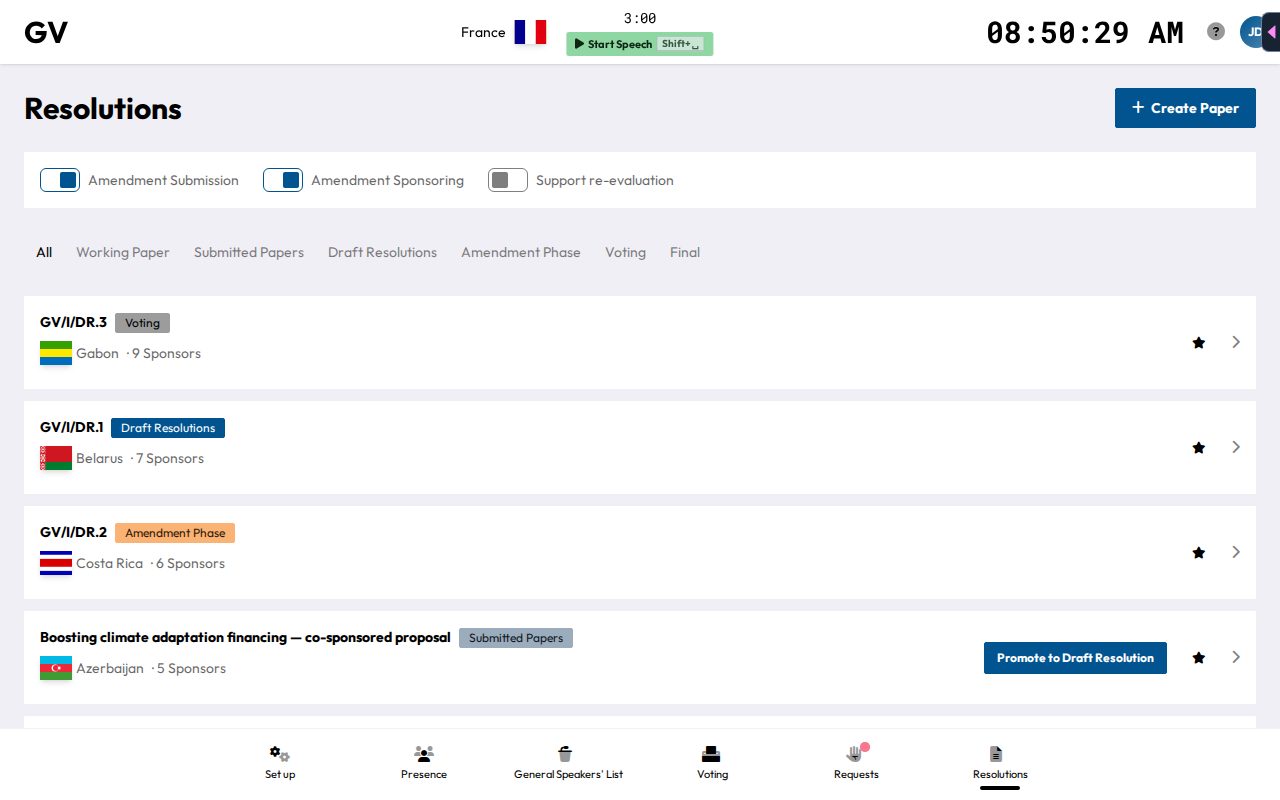
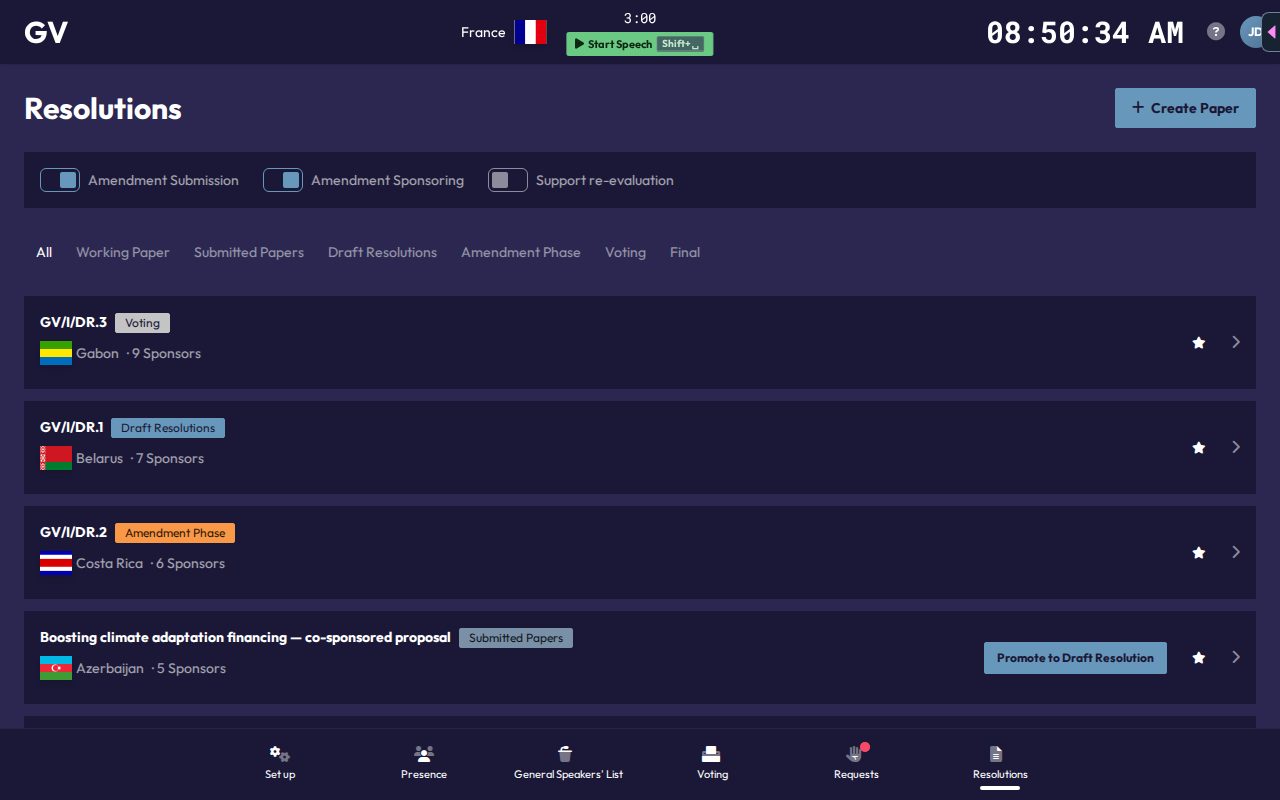
The Resolutions page (Alt+5, or Alt+6 when Requests is on) lists the papers of the active agenda item, sorted by number of sponsors, with tabs to filter by status. It is not available in the offline demo.
At the top you control three committee-wide toggles: Amendment Submission and Amendment Sponsoring decide whether delegates can currently submit new amendments or back existing ones. Support re-evaluation is meant for the phase where delegates may change their support. The same toggles sit behind the gear icon inside every paper.
Creating a paper
Create Paper starts a new working paper (needs an active agenda item first). Once a working paper is submitted, it appears here as Submitted Papers, and you can click Promote to Draft Resolution to move it forward. Promoting assigns a document number automatically in the form ABBR/II/DR.3 (committee, agenda item, running number), unless you set one yourself with the pen icon next to the title while the paper is submitted.
Use the star button on any paper to make it the committee's active draft resolution, the one shown on the shared presentation screen. Click the star again to unset it.
Inside a paper
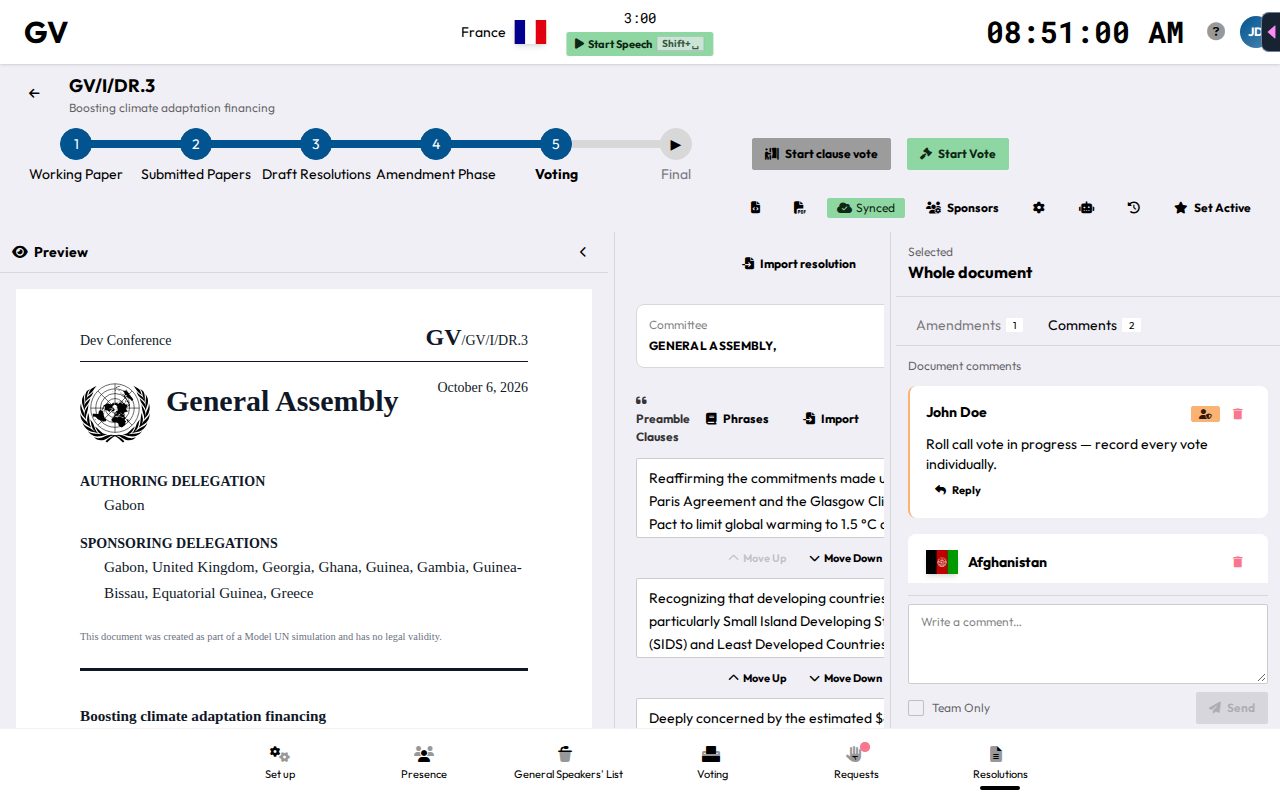
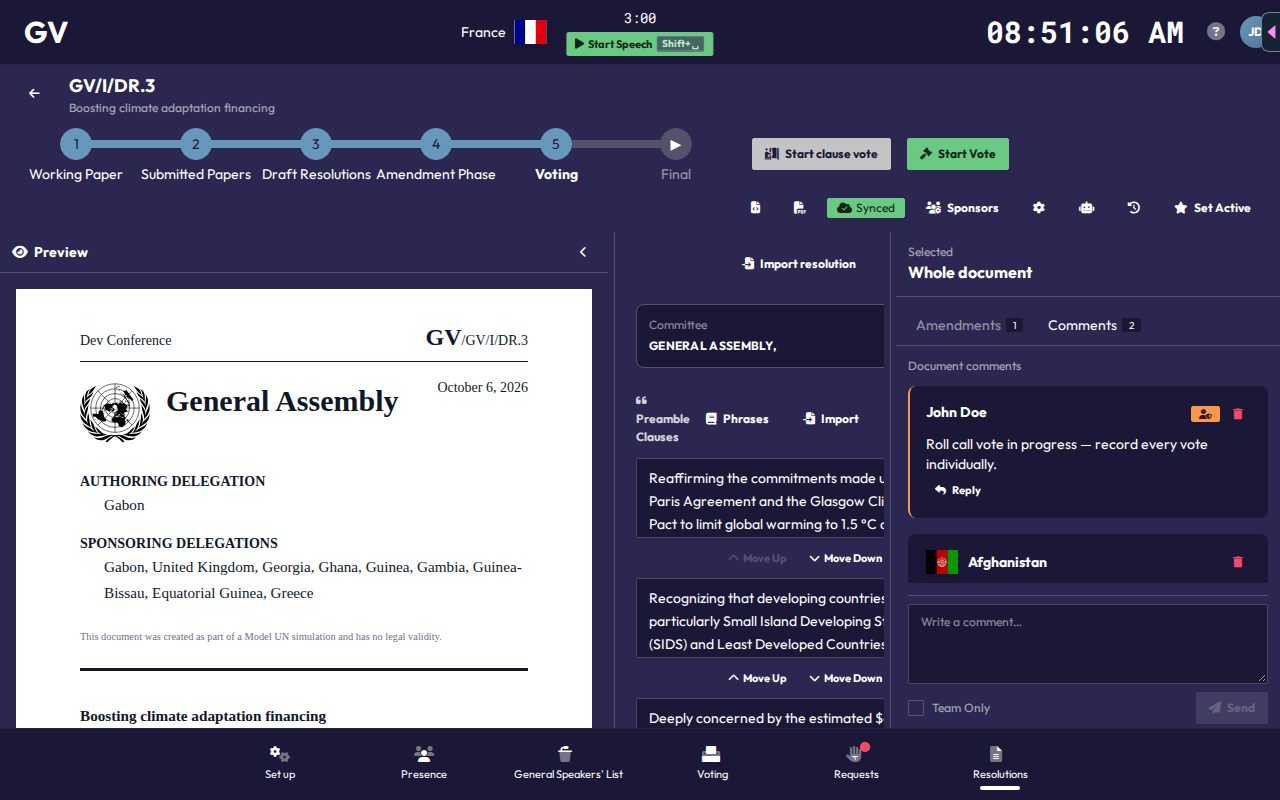
The header of a paper gives chairs these tools:
- Submit: submit a working paper on the delegates' behalf.
- Share Codes: create an Edit code or Sponsor code that lets other delegations co-edit or sponsor a working paper.
- Sponsors: see who supports the paper and add a sponsor with Add Sponsor.
- Gear icon: the three phase toggles from the list page.
- AI Settings (robot icon): your personal AI preference, see AI Assistance.
- Document history (clock icon): snapshots, see below.
- Set Active / Currently Active: the same star as on the list page.
- Download PDF and Download Typst source.
Moving through the lifecycle
Inside a paper, a step bar shows: Working Paper, Submitted Papers, Draft Resolutions, Amendment Phase, Voting, Final. Click the next step to advance, or an earlier step to revert (you'll be asked to confirm reverting).
- Entering the Amendment Phase first asks whether to open amendment submission, sponsoring and support re-evaluation automatically (Enable All) or leave your current toggle settings as they are (Keep Current Settings).
- Entering Voting resets to the first operative clause, ready for clause-by-clause votes.
- Entering Final asks you to confirm and lets you choose Finalize with Confetti 🎉 for a celebratory moment on the presentation screen, or Finalize without Confetti for a quieter wrap-up.
Clause-by-clause voting
In the Voting step, the current clause is highlighted. Move on with Set as current clause on the next clause (picking a clause out of order asks you to confirm first), then click Start clause vote (or Restart vote if you need to redo one). The vote setup opens pre-filled with show of hands, simple majority and abstentions allowed, and you can change it before starting. The outcome (Adopted/Rejected) is recorded per clause. If a clause is rejected, CHASE asks whether to remove it from the document (Remove Clause) or keep it (Keep Clause).
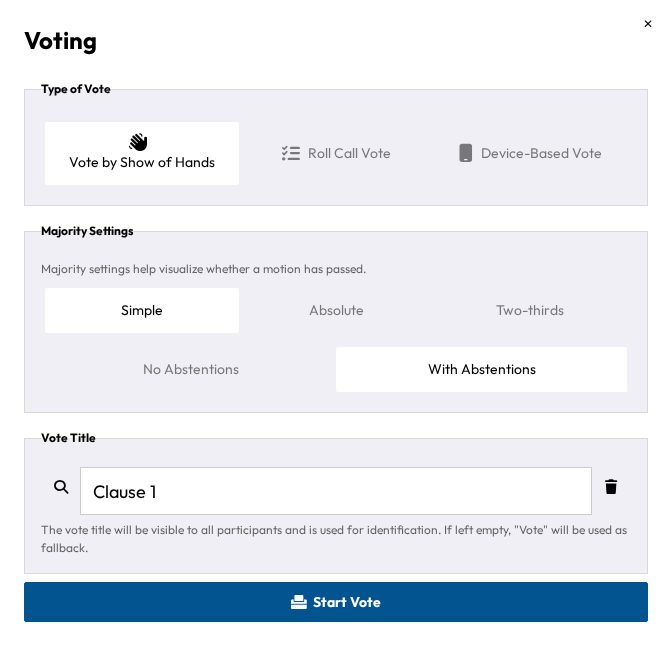
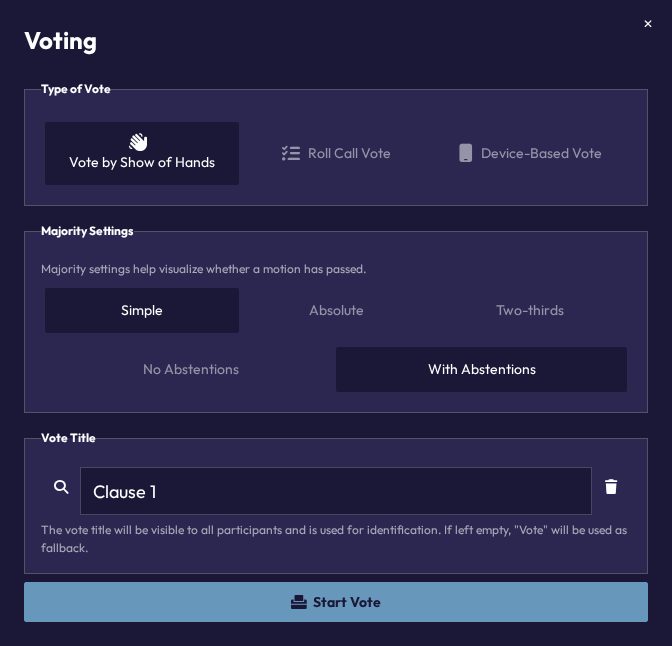
Start Vote launches the vote on the resolution as a whole. The setup opens pre-filled with a roll-call vote, absolute majority and abstentions allowed, which you can change.
Snapshots
Open Document history (clock icon) and click Save current state any time to checkpoint the document. CHASE also saves snapshots automatically when an amendment is applied, the paper is submitted, or a vote concludes. Restore asks for confirmation first and saves the current state before restoring.
Next steps
- Reviewing Amendments: accepting, rejecting, and reconciling amendments during the amendment phase